> ## Documentation Index
> Fetch the complete documentation index at: https://sourcebot-whoisthey-language-model-input-modalities.mintlify.site/llms.txt
> Use this file to discover all available pages before exploring further.
# Authentication
To securely access and interact with Sourcebot’s API, authentication is required. Users must generate an API Key, which will be used to authenticate requests.
If [anonymous access](/docs/configuration/auth/access-settings#anonymous-access) is enabled, some endpoints will be accessible without a API key.
## Creating an API key
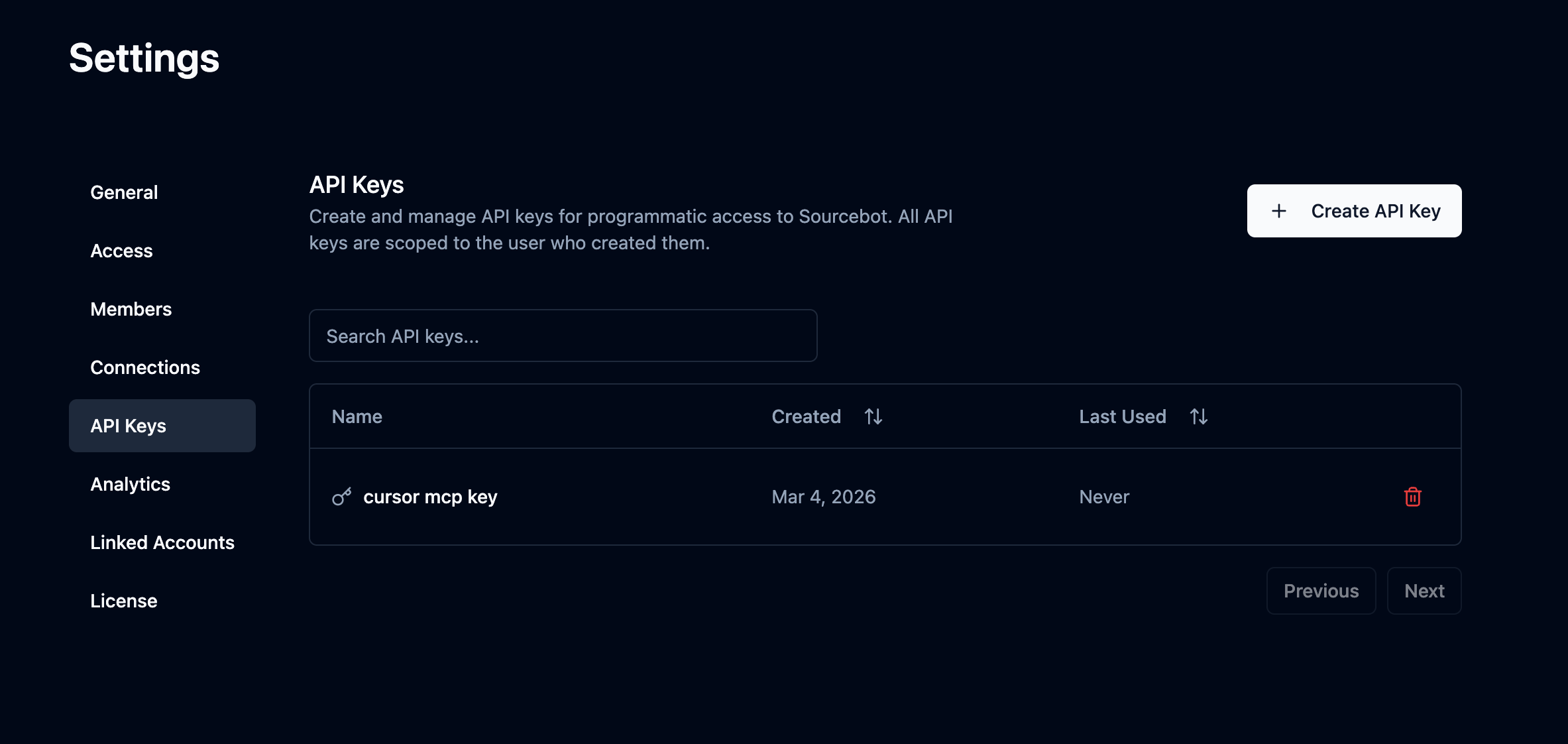
Navigate to **Settings → API Keys** and click **Create API Key**. Copy the value - it is only shown once.
 ## Using an API key
Pass your API key as a Bearer token in the `Authorization` header on every request.
```bash theme={null}
Authorization: Bearer
```
For example, to call the `/api/search` endpoint:
```bash theme={null}
curl -X POST https://your-sourcebot-instance.com/api/search \
-H "Authorization: Bearer " \
-H "Content-Type: application/json" \
-d '{"query": "hello world", "matches": 10}'
```
## Using an API key
Pass your API key as a Bearer token in the `Authorization` header on every request.
```bash theme={null}
Authorization: Bearer
```
For example, to call the `/api/search` endpoint:
```bash theme={null}
curl -X POST https://your-sourcebot-instance.com/api/search \
-H "Authorization: Bearer " \
-H "Content-Type: application/json" \
-d '{"query": "hello world", "matches": 10}'
```