> ## Documentation Index
> Fetch the complete documentation index at: https://sourcebot-whoisthey-language-model-input-modalities.mintlify.site/llms.txt
> Use this file to discover all available pages before exploring further.
# Access Settings
There are various settings to control how users access your Sourcebot deployment.
# Member Approval
By default, Sourcebot requires new members to be approved by an owner of the deployment. This section explains how approvals work and how
to configure this behavior.
### Configuration
Member approval can be configured by an owner of the deployment by navigating to **Settings -> Security**.
 ### Managing Requests
If member approval is enabled, new members will be asked to submit a join request after signing up. They will not have access to the Sourcebot deployment
until this request is approved by an owner.
Owners can see and manage all pending join requests by navigating to **Settings -> Members**.
## Invite link
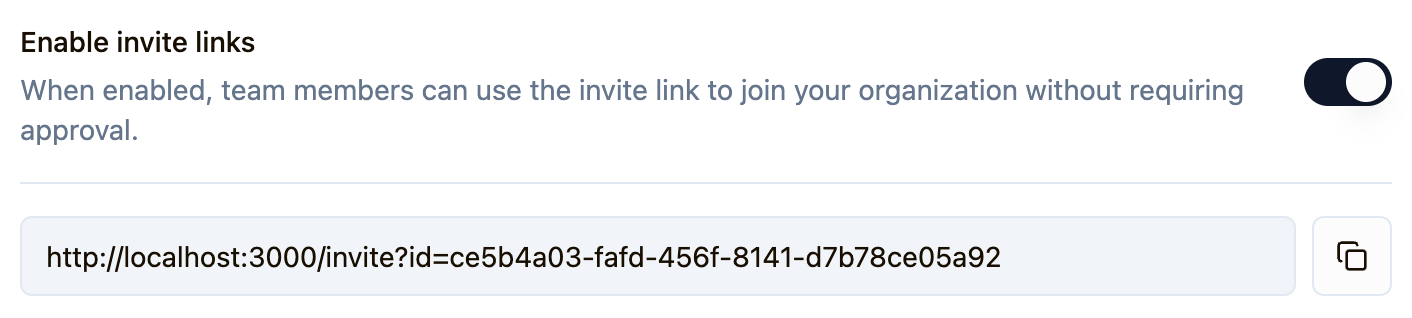
If member approval is required, an owner of the deployment can enable an invite link. When enabled, users
can use this invite link to register and be automatically added to the organization without approval:
### Managing Requests
If member approval is enabled, new members will be asked to submit a join request after signing up. They will not have access to the Sourcebot deployment
until this request is approved by an owner.
Owners can see and manage all pending join requests by navigating to **Settings -> Members**.
## Invite link
If member approval is required, an owner of the deployment can enable an invite link. When enabled, users
can use this invite link to register and be automatically added to the organization without approval:
 # Anonymous access
Anonymous access is only available in the free plan. If you have any questions about this restriction [reach out to us](https://www.sourcebot.dev/contact).
By default, your Sourcebot deployment is gated with a login page. If you'd like users to access the deployment anonymously, you can enable anonymous access.
This can be enabled by navigating to **Settings -> Access**.
# Anonymous access
Anonymous access is only available in the free plan. If you have any questions about this restriction [reach out to us](https://www.sourcebot.dev/contact).
By default, your Sourcebot deployment is gated with a login page. If you'd like users to access the deployment anonymously, you can enable anonymous access.
This can be enabled by navigating to **Settings -> Access**.
 When accessing Sourcebot anonymously, a user's permissions are limited to that of the [Guest](/docs/configuration/auth/roles-and-permissions) role.