> ## Documentation Index
> Fetch the complete documentation index at: https://sourcebot-whoisthey-language-model-input-modalities.mintlify.site/llms.txt
> Use this file to discover all available pages before exploring further.
# External Identity Providers
export const feature_0 = "External Identity Providers"
export const verb_0 = "are"
{feature_0} {verb_0 ?? "is"} only available in a paid plan. Please activate a [license key](/docs/activating-a-subscription) to use this feature.
You can connect Sourcebot to various **external identity providers** to associate a Sourcebot user with one or more external service accounts (ex. Google, GitHub, etc).
External identity providers can be used for [authentication](/docs/configuration/auth) and/or [permission syncing](/docs/features/permission-syncing). They're defined in the
[config file](/docs/configuration/config-file) in the top-level `identityProviders` array:
```json wrap icon="code" Example config with both google and github identity providers defined theme={null}
{
"$schema": "https://raw.githubusercontent.com/sourcebot-dev/sourcebot/main/schemas/v3/index.json",
"identityProviders": [
{
"provider": "github",
"purpose": "account_linking",
"accountLinkingRequired": true,
"clientId": {
"env": "GITHUB_IDENTITY_PROVIDER_CLIENT_ID"
},
"clientSecret": {
"env": "GITHUB_IDENTITY_PROVIDER_CLIENT_SECRET"
}
},
{
"provider": "google",
"clientId": {
"env": "GOOGLE_IDENTITY_PROVIDER_CLIENT_ID"
},
"clientSecret": {
"env": "GOOGLE_IDENTITY_PROVIDER_CLIENT_SECRET"
}
}
]
}
```
Secret values (such as `clientId` and `clientSecret`) can be provided as environment variables or Google Cloud secrets via [tokens](/docs/configuration/config-file#tokens).
To configure **multiple providers of the same type**, see [Configuring multiple providers of the same type](#configuring-multiple-providers-of-the-same-type).
# Supported External Identity Providers
Sourcebot uses [Auth.js](https://authjs.dev/) to connect to external identity providers. If there's a provider supported by Auth.js that you don't see below, please submit a
[feature request](https://github.com/sourcebot-dev/sourcebot/issues) to have it added.
### GitHub
[Auth.js GitHub Provider Docs](https://authjs.dev/getting-started/providers/github)
A GitHub connection can be used for [authentication](/docs/configuration/auth) and/or [permission syncing](/docs/features/permission-syncing). This is controlled using the `purpose` field
in the GitHub identity provider config.
To begin, you must register an Oauth client in GitHub to facilitate the identity provider connection. You can do this by creating a **GitHub App** or a **GitHub OAuth App**. Either
one works, but the **GitHub App** is the [recommended mechanism](https://docs.github.com/en/apps/oauth-apps/building-oauth-apps/differences-between-github-apps-and-oauth-apps).
The result of registering an OAuth client is a `CLIENT_ID` and `CLIENT_SECRET` which you'll provide to Sourcebot.
You don't need to install the app to use it as an external identity provider
Follow [this guide](https://docs.github.com/en/apps/creating-github-apps/registering-a-github-app/registering-a-github-app) to register a new GitHub App.
When asked to provide a callback url, provide `/api/auth/callback/github` (ex. [https://sourcebot.coolcorp.com/api/auth/callback/github](https://sourcebot.coolcorp.com/api/auth/callback/github))
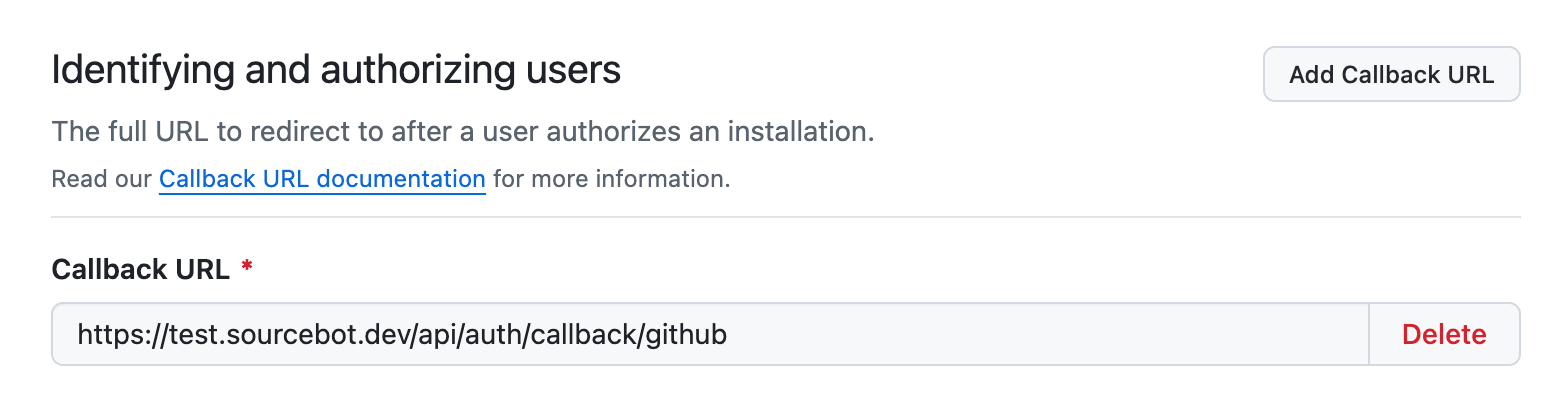 Select "Request user authorization (OAuth) during installation"
 Set the following fine-grained permissions in the GitHub App:
* `“Email addresses” account permissions (read)`
Set the following fine-grained permissions in the GitHub App:
* `“Email addresses” account permissions (read)`
 * `"Metadata" repository permissions (read)` (only needed if using [permission syncing](/docs/features/permission-syncing))
 * `"Contents" repository permissions (read)` (only needed if using the app to [authenticate a connection](/docs/connections/github#authenticating-with-github))
 Follow [this guide](https://docs.github.com/en/apps/oauth-apps/building-oauth-apps/creating-an-oauth-app) by GitHub to create an OAuth App.
When asked to provide a callback url, provide `/api/auth/callback/github` (ex. [https://sourcebot.coolcorp.com/api/auth/callback/github](https://sourcebot.coolcorp.com/api/auth/callback/github))
If [permission syncing](/docs/features/permission-syncing#github) is enabled, also enable the `repo` scope.
To provide Sourcebot the client id and secret for your OAuth client you must set them as environment variables. These can be named whatever you like
(ex. `GITHUB_IDENTITY_PROVIDER_CLIENT_ID` and `GITHUB_IDENTITY_PROVIDER_CLIENT_SECRET`)
Finally, pass the client id and secret to Sourcebot by defining a `identityProvider` object in the [config file](/docs/configuration/config-file):
```json wrap icon="code" theme={null}
{
"$schema": "https://raw.githubusercontent.com/sourcebot-dev/sourcebot/main/schemas/v3/index.json",
"identityProviders": [
{
"provider": "github",
// "sso" for auth + perm sync, "account_linking" for only perm sync
"purpose": "account_linking",
// if purpose == "account_linking" this controls if a user must connect to the IdP
"accountLinkingRequired": true,
"clientId": {
"env": "YOUR_CLIENT_ID_ENV_VAR"
},
"clientSecret": {
"env": "YOUR_CLIENT_SECRET_ENV_VAR"
},
// Optional: for self-hosted GitHub Enterprise Server instances
"baseUrl": "https://github.example.com"
}
]
}
```
### GitLab
[Auth.js GitLab Provider Docs](https://authjs.dev/getting-started/providers/gitlab)
A GitLab connection can be used for [authentication](/docs/configuration/auth) and/or [permission syncing](/docs/features/permission-syncing). This is controlled using the `purpose` field
in the GitLab identity provider config.
To begin, you must register an OAuth application in GitLab to facilitate the identity provider connection.
Follow [this guide](https://docs.gitlab.com/integration/oauth_provider/) by GitLab to create an OAuth application.
When configuring your application:
* Set the callback URL to `/api/auth/callback/gitlab` (ex. [https://sourcebot.coolcorp.com/api/auth/callback/gitlab](https://sourcebot.coolcorp.com/api/auth/callback/gitlab))
* Enable the `read_user` scope
* If [permission syncing](/docs/features/permission-syncing#gitlab) is enabled, also enable the `read_api` scope
The result of registering an OAuth application is an `APPLICATION_ID` (`CLIENT_ID`) and `SECRET` (`CLIENT_SECRET`) which you'll provide to Sourcebot.
To provide Sourcebot the client id and secret for your OAuth application you must set them as environment variables. These can be named whatever you like
(ex. `GITLAB_IDENTITY_PROVIDER_CLIENT_ID` and `GITLAB_IDENTITY_PROVIDER_CLIENT_SECRET`)
Finally, pass the client id and secret to Sourcebot by defining a `identityProvider` object in the [config file](/docs/configuration/config-file):
```json wrap icon="code" theme={null}
{
"$schema": "https://raw.githubusercontent.com/sourcebot-dev/sourcebot/main/schemas/v3/index.json",
"identityProviders": [
{
"provider": "gitlab",
// "sso" for auth + perm sync, "account_linking" for only perm sync
"purpose": "account_linking",
// if purpose == "account_linking" this controls if a user must connect to the IdP
"accountLinkingRequired": true,
"clientId": {
"env": "YOUR_CLIENT_ID_ENV_VAR"
},
"clientSecret": {
"env": "YOUR_CLIENT_SECRET_ENV_VAR"
},
// Optional: for self-hosted GitLab instances
"baseUrl": "https://gitlab.example.com"
}
]
}
```
### Bitbucket Cloud
[Auth.js Bitbucket Provider Docs](https://authjs.dev/getting-started/providers/bitbucket)
A Bitbucket Cloud connection can be used for [authentication](/docs/configuration/auth) and/or [permission syncing](/docs/features/permission-syncing). This is controlled using the `purpose` field
in the Bitbucket Cloud identity provider config.
To begin, you must register an OAuth consumer in Bitbucket to facilitate the identity provider connection.
Navigate to your Bitbucket workspace settings at `https://bitbucket.org//workspace/settings/api` and create a new **OAuth consumer** under the **OAuth consumers** section.
When configuring your consumer:
* Set the callback URL to `/api/auth/callback/bitbucket-cloud` (ex. [https://sourcebot.coolcorp.com/api/auth/callback/bitbucket-cloud](https://sourcebot.coolcorp.com/api/auth/callback/bitbucket-cloud))
* Enable **Account: Read**
* If [permission syncing](/docs/features/permission-syncing#bitbucket-cloud) is enabled, also enable **Repositories: Read**
The result of creating an OAuth consumer is a `Key` (`CLIENT_ID`) and `Secret` (`CLIENT_SECRET`) which you'll provide to Sourcebot.
To provide Sourcebot the client id and secret for your OAuth consumer you must set them as environment variables. These can be named whatever you like
(ex. `BITBUCKET_CLOUD_IDENTITY_PROVIDER_CLIENT_ID` and `BITBUCKET_CLOUD_IDENTITY_PROVIDER_CLIENT_SECRET`)
Finally, pass the client id and secret to Sourcebot by defining a `identityProvider` object in the [config file](/docs/configuration/config-file):
```json wrap icon="code" theme={null}
{
"$schema": "https://raw.githubusercontent.com/sourcebot-dev/sourcebot/main/schemas/v3/index.json",
"identityProviders": [
{
"provider": "bitbucket-cloud",
// "sso" for auth + perm sync, "account_linking" for only perm sync
"purpose": "account_linking",
// if purpose == "account_linking" this controls if a user must connect to the IdP
"accountLinkingRequired": true,
"clientId": {
"env": "YOUR_CLIENT_ID_ENV_VAR"
},
"clientSecret": {
"env": "YOUR_CLIENT_SECRET_ENV_VAR"
}
}
]
}
```
### Bitbucket Server
A Bitbucket Server (Data Center) connection can be used for [authentication](/docs/configuration/auth) and/or [permission syncing](/docs/features/permission-syncing). This is controlled using the `purpose` field
in the Bitbucket Server identity provider config.
To begin, you must register an OAuth 2.0 application in your Bitbucket Server instance to facilitate the identity provider connection.
In your Bitbucket Server admin panel, navigate to **Administration → Application Links** and create a new incoming external application link.
When configuring your application:
* Set the redirect URL to `/api/auth/callback/bitbucket-server` (ex. [https://sourcebot.coolcorp.com/api/auth/callback/bitbucket-server](https://sourcebot.coolcorp.com/api/auth/callback/bitbucket-server))
* If [permission syncing](/docs/features/permission-syncing#bitbucket-data-center) is enabled, also enable the `REPO_READ` scope
The result of creating the application is a `CLIENT_ID` and `CLIENT_SECRET` which you'll provide to Sourcebot.
To provide Sourcebot the client id and secret for your OAuth application you must set them as environment variables. These can be named whatever you like
(ex. `BITBUCKET_SERVER_IDENTITY_PROVIDER_CLIENT_ID` and `BITBUCKET_SERVER_IDENTITY_PROVIDER_CLIENT_SECRET`)
Finally, pass the client id, client secret, and your Bitbucket Server base URL to Sourcebot by defining a `identityProvider` object in the [config file](/docs/configuration/config-file):
```json wrap icon="code" theme={null}
{
"$schema": "https://raw.githubusercontent.com/sourcebot-dev/sourcebot/main/schemas/v3/index.json",
"identityProviders": [
{
"provider": "bitbucket-server",
// "sso" for auth + perm sync, "account_linking" for only perm sync
"purpose": "account_linking",
// if purpose == "account_linking" this controls if a user must connect to the IdP
"accountLinkingRequired": true,
"baseUrl": "https://bitbucket.example.com",
"clientId": {
"env": "YOUR_CLIENT_ID_ENV_VAR"
},
"clientSecret": {
"env": "YOUR_CLIENT_SECRET_ENV_VAR"
}
}
]
}
```
### Google
[Auth.js Google Provider Docs](https://authjs.dev/getting-started/providers/google)
A Google connection can be used for [authentication](/docs/configuration/auth).
To begin, you must register an OAuth client in Google Cloud Console to facilitate the identity provider connection.
Follow [this guide](https://support.google.com/cloud/answer/6158849) by Google to create OAuth 2.0 credentials.
When configuring your OAuth client:
* Set the application type to "Web application"
* Add `/api/auth/callback/google` to the authorized redirect URIs (ex. [https://sourcebot.coolcorp.com/api/auth/callback/google](https://sourcebot.coolcorp.com/api/auth/callback/google))
The result of creating OAuth credentials is a `CLIENT_ID` and `CLIENT_SECRET` which you'll provide to Sourcebot.
To provide Sourcebot the client id and secret for your OAuth client you must set them as environment variables. These can be named whatever you like
(ex. `GOOGLE_IDENTITY_PROVIDER_CLIENT_ID` and `GOOGLE_IDENTITY_PROVIDER_CLIENT_SECRET`)
Finally, pass the client id and secret to Sourcebot by defining a `identityProvider` object in the [config file](/docs/configuration/config-file):
```json wrap icon="code" theme={null}
{
"$schema": "https://raw.githubusercontent.com/sourcebot-dev/sourcebot/main/schemas/v3/index.json",
"identityProviders": [
{
"provider": "google",
"purpose": "sso",
"clientId": {
"env": "YOUR_CLIENT_ID_ENV_VAR"
},
"clientSecret": {
"env": "YOUR_CLIENT_SECRET_ENV_VAR"
}
}
]
}
```
### Okta
[Auth.js Okta Provider Docs](https://authjs.dev/getting-started/providers/okta)
An Okta connection can be used for [authentication](/docs/configuration/auth).
To begin, you must register an OAuth application in Okta to facilitate the identity provider connection.
Follow [this guide](https://developer.okta.com/docs/guides/implement-oauth-for-okta/main/) by Okta to create an OAuth application.
When configuring your application:
* Set the application type to "Web Application"
* Add `/api/auth/callback/okta` to the sign-in redirect URIs (ex. [https://sourcebot.coolcorp.com/api/auth/callback/okta](https://sourcebot.coolcorp.com/api/auth/callback/okta))
The result of creating an OAuth application is a `CLIENT_ID`, `CLIENT_SECRET`, and `ISSUER` URL which you'll provide to Sourcebot.
To provide Sourcebot the client id, client secret, and issuer for your OAuth application you must set them as environment variables. These can be named whatever you like
(ex. `OKTA_IDENTITY_PROVIDER_CLIENT_ID`, `OKTA_IDENTITY_PROVIDER_CLIENT_SECRET`, and `OKTA_IDENTITY_PROVIDER_ISSUER`)
Finally, pass the client id, client secret, and issuer to Sourcebot by defining a `identityProvider` object in the [config file](/docs/configuration/config-file):
```json wrap icon="code" theme={null}
{
"$schema": "https://raw.githubusercontent.com/sourcebot-dev/sourcebot/main/schemas/v3/index.json",
"identityProviders": [
{
"provider": "okta",
"purpose": "sso",
"clientId": {
"env": "YOUR_CLIENT_ID_ENV_VAR"
},
"clientSecret": {
"env": "YOUR_CLIENT_SECRET_ENV_VAR"
},
"issuer": {
"env": "YOUR_ISSUER_ENV_VAR"
}
}
]
}
```
### Keycloak
[Auth.js Keycloak Provider Docs](https://authjs.dev/getting-started/providers/keycloak)
A Keycloak connection can be used for [authentication](/docs/configuration/auth).
To begin, you must register an OAuth client in Keycloak to facilitate the identity provider connection.
Follow [this guide](https://www.keycloak.org/docs/latest/server_admin/#_oidc_clients) by Keycloak to create an OpenID Connect client.
When configuring your client:
* Set the client protocol to "openid-connect"
* Set the access type to "confidential"
* Add `/api/auth/callback/keycloak` to the valid redirect URIs (ex. [https://sourcebot.coolcorp.com/api/auth/callback/keycloak](https://sourcebot.coolcorp.com/api/auth/callback/keycloak))
The result of creating an OAuth client is a `CLIENT_ID`, `CLIENT_SECRET`, and an `ISSUER` URL (typically in the format `https:///realms/`) which you'll provide to Sourcebot.
To provide Sourcebot the client id, client secret, and issuer for your OAuth client you must set them as environment variables. These can be named whatever you like
(ex. `KEYCLOAK_IDENTITY_PROVIDER_CLIENT_ID`, `KEYCLOAK_IDENTITY_PROVIDER_CLIENT_SECRET`, and `KEYCLOAK_IDENTITY_PROVIDER_ISSUER`)
Finally, pass the client id, client secret, and issuer to Sourcebot by defining a `identityProvider` object in the [config file](/docs/configuration/config-file):
```json wrap icon="code" theme={null}
{
"$schema": "https://raw.githubusercontent.com/sourcebot-dev/sourcebot/main/schemas/v3/index.json",
"identityProviders": [
{
"provider": "keycloak",
"purpose": "sso",
"clientId": {
"env": "YOUR_CLIENT_ID_ENV_VAR"
},
"clientSecret": {
"env": "YOUR_CLIENT_SECRET_ENV_VAR"
},
"issuer": {
"env": "YOUR_ISSUER_ENV_VAR"
}
}
]
}
```
### Microsoft Entra ID (Azure AD)
[Auth.js Microsoft Entra ID Provider Docs](https://authjs.dev/getting-started/providers/microsoft-entra-id)
A Microsoft Entra ID connection can be used for [authentication](/docs/configuration/auth).
Microsoft renamed Azure Active Directory (Azure AD) to Microsoft Entra ID in 2023. If you have an existing Azure AD setup, these instructions will work for you. The underlying authentication infrastructure is the same.
To begin, you must register an OAuth application in Microsoft Entra ID (formerly Azure Active Directory) to facilitate the identity provider connection.
Follow [this guide](https://learn.microsoft.com/en-us/entra/identity-platform/quickstart-register-app) by Microsoft to register an application.
When configuring your application:
* Under "Authentication", add a platform and select "Web"
* Set the redirect URI to `/api/auth/callback/microsoft-entra-id` (ex. [https://sourcebot.coolcorp.com/api/auth/callback/microsoft-entra-id](https://sourcebot.coolcorp.com/api/auth/callback/microsoft-entra-id))
* Under "Certificates & secrets", create a new client secret
The result of registering an application is a `CLIENT_ID` (Application ID), `CLIENT_SECRET`, and `TENANT_ID` which you'll use to construct the issuer URL.
To provide Sourcebot the client id, client secret, and issuer for your OAuth application you must set them as environment variables. These can be named whatever you like
(ex. `MICROSOFT_ENTRA_ID_IDENTITY_PROVIDER_CLIENT_ID`, `MICROSOFT_ENTRA_ID_IDENTITY_PROVIDER_CLIENT_SECRET`, and `MICROSOFT_ENTRA_ID_IDENTITY_PROVIDER_ISSUER`)
The issuer URL should be in the format: `https://login.microsoftonline.com//v2.0`
Finally, pass the client id, client secret, and issuer to Sourcebot by defining a `identityProvider` object in the [config file](/docs/configuration/config-file):
```json wrap icon="code" theme={null}
{
"$schema": "https://raw.githubusercontent.com/sourcebot-dev/sourcebot/main/schemas/v3/index.json",
"identityProviders": [
{
"provider": "microsoft-entra-id",
"purpose": "sso",
"clientId": {
"env": "YOUR_CLIENT_ID_ENV_VAR"
},
"clientSecret": {
"env": "YOUR_CLIENT_SECRET_ENV_VAR"
},
"issuer": {
"env": "YOUR_ISSUER_ENV_VAR"
}
}
]
}
```
### Authentik
[Auth.js Authentik Provider Docs](https://authjs.dev/getting-started/providers/authentik)
An Authentik connection can be used for [authentication](/docs/configuration/auth).
To begin, you must create a OAuth2/OpenID Connect application in Authentik. For more information, see the [Authentik documentation](https://docs.goauthentik.io/add-secure-apps/applications/manage_apps/#create-an-application-and-provider-pair).
When configuring your application:
* Set the provider type to "OAuth2/OpenID Connect"
* Set the client type to "Confidential"
* Add `/api/auth/callback/authentik` to the redirect URIs (ex. [https://sourcebot.coolcorp.com/api/auth/callback/authentik](https://sourcebot.coolcorp.com/api/auth/callback/authentik))
After creating the application, open the application details to obtain the client id, client secret, and issuer URL (typically in the format `https:///application/o//`).
The client id, secret, and issuer URL are provided to Sourcebot via environment variables. These can be named whatever you like
(ex. `AUTHENTIK_IDENTITY_PROVIDER_CLIENT_ID`, `AUTHENTIK_IDENTITY_PROVIDER_CLIENT_SECRET`, and `AUTHENTIK_IDENTITY_PROVIDER_ISSUER`)
Create a `identityProvider` object in the [config file](/docs/configuration/config-file) with the following fields:
```json wrap icon="code" theme={null}
{
"$schema": "https://raw.githubusercontent.com/sourcebot-dev/sourcebot/main/schemas/v3/index.json",
"identityProviders": [
{
"provider": "authentik",
"purpose": "sso",
"clientId": {
"env": "AUTHENTIK_IDENTITY_PROVIDER_CLIENT_ID"
},
"clientSecret": {
"env": "AUTHENTIK_IDENTITY_PROVIDER_CLIENT_SECRET"
},
"issuer": {
"env": "AUTHENTIK_IDENTITY_PROVIDER_ISSUER"
}
}
]
}
```
### JumpCloud
A JumpCloud connection can be used for [authentication](/docs/configuration/auth). JumpCloud supports OIDC (OpenID Connect), which Sourcebot uses to authenticate users.
To begin, you must create an SSO application in JumpCloud to facilitate the identity provider connection. For more information, see the [JumpCloud OIDC documentation](https://jumpcloud.com/support/sso-with-oidc).
When configuring your application:
* Set the SSO type to "OIDC"
* Set the **Token Endpoint Authentication Method** to `client_secret_basic`. JumpCloud defaults to `client_secret_post`, but Sourcebot requires `client_secret_basic`.
* Add `/api/auth/callback/jumpcloud` to the redirect URIs (ex. [https://sourcebot.coolcorp.com/api/auth/callback/jumpcloud](https://sourcebot.coolcorp.com/api/auth/callback/jumpcloud))
* Set the login URL to `/login`
After creating the application, note the `CLIENT_ID` and `CLIENT_SECRET`. The issuer URL is typically `https://oauth.id.jumpcloud.com`.
The client id, secret, and issuer URL are provided to Sourcebot via environment variables. These can be named whatever you like
(ex. `JUMPCLOUD_IDENTITY_PROVIDER_CLIENT_ID`, `JUMPCLOUD_IDENTITY_PROVIDER_CLIENT_SECRET`, and `JUMPCLOUD_IDENTITY_PROVIDER_ISSUER`)
You must also set the `AUTH_SECRET` environment variable. Generate one with `openssl rand -base64 33` and pass it to your Sourcebot deployment. While `AUTH_SECRET` is auto-generated if not provided, it must be explicitly set for SSO to work reliably across restarts.
Create a `identityProvider` object in the [config file](/docs/configuration/config-file) with the following fields:
```json wrap icon="code" theme={null}
{
"$schema": "https://raw.githubusercontent.com/sourcebot-dev/sourcebot/main/schemas/v3/index.json",
"identityProviders": [
{
"provider": "jumpcloud",
"purpose": "sso",
"clientId": {
"env": "JUMPCLOUD_IDENTITY_PROVIDER_CLIENT_ID"
},
"clientSecret": {
"env": "JUMPCLOUD_IDENTITY_PROVIDER_CLIENT_SECRET"
},
"issuer": {
"env": "JUMPCLOUD_IDENTITY_PROVIDER_ISSUER"
}
}
]
}
```
### Google Cloud IAP
[Google Cloud IAP Documentation](https://cloud.google.com/iap/docs)
Google Cloud Identity-Aware Proxy (IAP) can be used for [authentication](/docs/configuration/auth). IAP provides a layer of security for applications deployed on Google Cloud, allowing you to control access based on user identity and context.
GCP IAP works differently from other identity providers. Instead of redirecting users to an OAuth flow, IAP intercepts requests at the infrastructure level and adds a signed JWT header that Sourcebot validates. This means users are automatically authenticated when accessing Sourcebot through an IAP-protected endpoint.
Your Sourcebot deployment must be behind Google Cloud IAP. Follow [this guide](https://cloud.google.com/iap/docs/enabling-on-premises-howto) by Google to enable IAP for your application.
After enabling IAP, note the **Signed Header JWT Audience**. You can find this in the Google Cloud Console under **Security → Identity-Aware Proxy → (your application) → Edit OAuth Client → Application settings**.
The audience will be in the format: `/projects//global/backendServices/` or `/projects//apps/`.
Set the IAP audience as an environment variable. This can be named whatever you like (ex. `GCP_IAP_AUDIENCE`).
Create a `identityProvider` object in the [config file](/docs/configuration/config-file) with the following fields:
```json wrap icon="code" theme={null}
{
"$schema": "https://raw.githubusercontent.com/sourcebot-dev/sourcebot/main/schemas/v3/index.json",
"identityProviders": [
{
"provider": "gcp-iap",
"purpose": "sso",
"audience": {
"env": "GCP_IAP_AUDIENCE"
}
}
]
}
```
# Configuring multiple providers of the same type
By default, each provider in the `identityProviders` array is identified by an **id** equal to its `provider` value. This id determines the provider's OAuth **callback URL** (sometimes called the redirect URL):
```
/api/auth/callback/
```
This is why the examples above register callback URLs like `/api/auth/callback/github`. The array form supports only **one instance per provider type**.
To configure **multiple instances of the same provider type** (for example, gitlab.com alongside a self-hosted GitLab instance), switch `identityProviders` to its object form, where you assign each provider a unique id:
```json wrap icon="code" Two GitLab providers, one for gitlab.com and one for a self-hosted instance theme={null}
{
"$schema": "https://raw.githubusercontent.com/sourcebot-dev/sourcebot/main/schemas/v3/index.json",
"identityProviders": {
"gitlab-cloud": {
"provider": "gitlab",
"purpose": "sso",
"displayName": "GitLab.com",
"clientId": { "env": "GITLAB_CLOUD_CLIENT_ID" },
"clientSecret": { "env": "GITLAB_CLOUD_CLIENT_SECRET" }
},
"gitlab-selfhosted": {
"provider": "gitlab",
"purpose": "sso",
"displayName": "Selfhosted GitLab",
"baseUrl": "https://gitlab.example.com",
"clientId": { "env": "GITLAB_SELFHOSTED_CLIENT_ID" },
"clientSecret": { "env": "GITLAB_SELFHOSTED_CLIENT_SECRET" }
}
}
}
```
Each provider keeps the same fields documented above. The only differences are:
* `identityProviders` is an **object** keyed by id instead of an array.
* The id you choose (`gitlab-cloud`, `gitlab-selfhosted`) sets the callback URL, so you register `/api/auth/callback/gitlab-cloud` and `/api/auth/callback/gitlab-selfhosted` with their respective OAuth clients.
* Set an optional `displayName` on each provider to give it a distinct label on the login screen. Without it, both instances fall back to the same provider-type name (for example, "GitLab"), making them hard to tell apart.
Each instance needs its own OAuth client (its own `clientId` and `clientSecret`) registered with the matching callback URL.
Follow [this guide](https://docs.github.com/en/apps/oauth-apps/building-oauth-apps/creating-an-oauth-app) by GitHub to create an OAuth App.
When asked to provide a callback url, provide `/api/auth/callback/github` (ex. [https://sourcebot.coolcorp.com/api/auth/callback/github](https://sourcebot.coolcorp.com/api/auth/callback/github))
If [permission syncing](/docs/features/permission-syncing#github) is enabled, also enable the `repo` scope.
To provide Sourcebot the client id and secret for your OAuth client you must set them as environment variables. These can be named whatever you like
(ex. `GITHUB_IDENTITY_PROVIDER_CLIENT_ID` and `GITHUB_IDENTITY_PROVIDER_CLIENT_SECRET`)
Finally, pass the client id and secret to Sourcebot by defining a `identityProvider` object in the [config file](/docs/configuration/config-file):
```json wrap icon="code" theme={null}
{
"$schema": "https://raw.githubusercontent.com/sourcebot-dev/sourcebot/main/schemas/v3/index.json",
"identityProviders": [
{
"provider": "github",
// "sso" for auth + perm sync, "account_linking" for only perm sync
"purpose": "account_linking",
// if purpose == "account_linking" this controls if a user must connect to the IdP
"accountLinkingRequired": true,
"clientId": {
"env": "YOUR_CLIENT_ID_ENV_VAR"
},
"clientSecret": {
"env": "YOUR_CLIENT_SECRET_ENV_VAR"
},
// Optional: for self-hosted GitHub Enterprise Server instances
"baseUrl": "https://github.example.com"
}
]
}
```
### GitLab
[Auth.js GitLab Provider Docs](https://authjs.dev/getting-started/providers/gitlab)
A GitLab connection can be used for [authentication](/docs/configuration/auth) and/or [permission syncing](/docs/features/permission-syncing). This is controlled using the `purpose` field
in the GitLab identity provider config.
To begin, you must register an OAuth application in GitLab to facilitate the identity provider connection.
Follow [this guide](https://docs.gitlab.com/integration/oauth_provider/) by GitLab to create an OAuth application.
When configuring your application:
* Set the callback URL to `/api/auth/callback/gitlab` (ex. [https://sourcebot.coolcorp.com/api/auth/callback/gitlab](https://sourcebot.coolcorp.com/api/auth/callback/gitlab))
* Enable the `read_user` scope
* If [permission syncing](/docs/features/permission-syncing#gitlab) is enabled, also enable the `read_api` scope
The result of registering an OAuth application is an `APPLICATION_ID` (`CLIENT_ID`) and `SECRET` (`CLIENT_SECRET`) which you'll provide to Sourcebot.
To provide Sourcebot the client id and secret for your OAuth application you must set them as environment variables. These can be named whatever you like
(ex. `GITLAB_IDENTITY_PROVIDER_CLIENT_ID` and `GITLAB_IDENTITY_PROVIDER_CLIENT_SECRET`)
Finally, pass the client id and secret to Sourcebot by defining a `identityProvider` object in the [config file](/docs/configuration/config-file):
```json wrap icon="code" theme={null}
{
"$schema": "https://raw.githubusercontent.com/sourcebot-dev/sourcebot/main/schemas/v3/index.json",
"identityProviders": [
{
"provider": "gitlab",
// "sso" for auth + perm sync, "account_linking" for only perm sync
"purpose": "account_linking",
// if purpose == "account_linking" this controls if a user must connect to the IdP
"accountLinkingRequired": true,
"clientId": {
"env": "YOUR_CLIENT_ID_ENV_VAR"
},
"clientSecret": {
"env": "YOUR_CLIENT_SECRET_ENV_VAR"
},
// Optional: for self-hosted GitLab instances
"baseUrl": "https://gitlab.example.com"
}
]
}
```
### Bitbucket Cloud
[Auth.js Bitbucket Provider Docs](https://authjs.dev/getting-started/providers/bitbucket)
A Bitbucket Cloud connection can be used for [authentication](/docs/configuration/auth) and/or [permission syncing](/docs/features/permission-syncing). This is controlled using the `purpose` field
in the Bitbucket Cloud identity provider config.
To begin, you must register an OAuth consumer in Bitbucket to facilitate the identity provider connection.
Navigate to your Bitbucket workspace settings at `https://bitbucket.org//workspace/settings/api` and create a new **OAuth consumer** under the **OAuth consumers** section.
When configuring your consumer:
* Set the callback URL to `/api/auth/callback/bitbucket-cloud` (ex. [https://sourcebot.coolcorp.com/api/auth/callback/bitbucket-cloud](https://sourcebot.coolcorp.com/api/auth/callback/bitbucket-cloud))
* Enable **Account: Read**
* If [permission syncing](/docs/features/permission-syncing#bitbucket-cloud) is enabled, also enable **Repositories: Read**
The result of creating an OAuth consumer is a `Key` (`CLIENT_ID`) and `Secret` (`CLIENT_SECRET`) which you'll provide to Sourcebot.
To provide Sourcebot the client id and secret for your OAuth consumer you must set them as environment variables. These can be named whatever you like
(ex. `BITBUCKET_CLOUD_IDENTITY_PROVIDER_CLIENT_ID` and `BITBUCKET_CLOUD_IDENTITY_PROVIDER_CLIENT_SECRET`)
Finally, pass the client id and secret to Sourcebot by defining a `identityProvider` object in the [config file](/docs/configuration/config-file):
```json wrap icon="code" theme={null}
{
"$schema": "https://raw.githubusercontent.com/sourcebot-dev/sourcebot/main/schemas/v3/index.json",
"identityProviders": [
{
"provider": "bitbucket-cloud",
// "sso" for auth + perm sync, "account_linking" for only perm sync
"purpose": "account_linking",
// if purpose == "account_linking" this controls if a user must connect to the IdP
"accountLinkingRequired": true,
"clientId": {
"env": "YOUR_CLIENT_ID_ENV_VAR"
},
"clientSecret": {
"env": "YOUR_CLIENT_SECRET_ENV_VAR"
}
}
]
}
```
### Bitbucket Server
A Bitbucket Server (Data Center) connection can be used for [authentication](/docs/configuration/auth) and/or [permission syncing](/docs/features/permission-syncing). This is controlled using the `purpose` field
in the Bitbucket Server identity provider config.
To begin, you must register an OAuth 2.0 application in your Bitbucket Server instance to facilitate the identity provider connection.
In your Bitbucket Server admin panel, navigate to **Administration → Application Links** and create a new incoming external application link.
When configuring your application:
* Set the redirect URL to `/api/auth/callback/bitbucket-server` (ex. [https://sourcebot.coolcorp.com/api/auth/callback/bitbucket-server](https://sourcebot.coolcorp.com/api/auth/callback/bitbucket-server))
* If [permission syncing](/docs/features/permission-syncing#bitbucket-data-center) is enabled, also enable the `REPO_READ` scope
The result of creating the application is a `CLIENT_ID` and `CLIENT_SECRET` which you'll provide to Sourcebot.
To provide Sourcebot the client id and secret for your OAuth application you must set them as environment variables. These can be named whatever you like
(ex. `BITBUCKET_SERVER_IDENTITY_PROVIDER_CLIENT_ID` and `BITBUCKET_SERVER_IDENTITY_PROVIDER_CLIENT_SECRET`)
Finally, pass the client id, client secret, and your Bitbucket Server base URL to Sourcebot by defining a `identityProvider` object in the [config file](/docs/configuration/config-file):
```json wrap icon="code" theme={null}
{
"$schema": "https://raw.githubusercontent.com/sourcebot-dev/sourcebot/main/schemas/v3/index.json",
"identityProviders": [
{
"provider": "bitbucket-server",
// "sso" for auth + perm sync, "account_linking" for only perm sync
"purpose": "account_linking",
// if purpose == "account_linking" this controls if a user must connect to the IdP
"accountLinkingRequired": true,
"baseUrl": "https://bitbucket.example.com",
"clientId": {
"env": "YOUR_CLIENT_ID_ENV_VAR"
},
"clientSecret": {
"env": "YOUR_CLIENT_SECRET_ENV_VAR"
}
}
]
}
```
### Google
[Auth.js Google Provider Docs](https://authjs.dev/getting-started/providers/google)
A Google connection can be used for [authentication](/docs/configuration/auth).
To begin, you must register an OAuth client in Google Cloud Console to facilitate the identity provider connection.
Follow [this guide](https://support.google.com/cloud/answer/6158849) by Google to create OAuth 2.0 credentials.
When configuring your OAuth client:
* Set the application type to "Web application"
* Add `/api/auth/callback/google` to the authorized redirect URIs (ex. [https://sourcebot.coolcorp.com/api/auth/callback/google](https://sourcebot.coolcorp.com/api/auth/callback/google))
The result of creating OAuth credentials is a `CLIENT_ID` and `CLIENT_SECRET` which you'll provide to Sourcebot.
To provide Sourcebot the client id and secret for your OAuth client you must set them as environment variables. These can be named whatever you like
(ex. `GOOGLE_IDENTITY_PROVIDER_CLIENT_ID` and `GOOGLE_IDENTITY_PROVIDER_CLIENT_SECRET`)
Finally, pass the client id and secret to Sourcebot by defining a `identityProvider` object in the [config file](/docs/configuration/config-file):
```json wrap icon="code" theme={null}
{
"$schema": "https://raw.githubusercontent.com/sourcebot-dev/sourcebot/main/schemas/v3/index.json",
"identityProviders": [
{
"provider": "google",
"purpose": "sso",
"clientId": {
"env": "YOUR_CLIENT_ID_ENV_VAR"
},
"clientSecret": {
"env": "YOUR_CLIENT_SECRET_ENV_VAR"
}
}
]
}
```
### Okta
[Auth.js Okta Provider Docs](https://authjs.dev/getting-started/providers/okta)
An Okta connection can be used for [authentication](/docs/configuration/auth).
To begin, you must register an OAuth application in Okta to facilitate the identity provider connection.
Follow [this guide](https://developer.okta.com/docs/guides/implement-oauth-for-okta/main/) by Okta to create an OAuth application.
When configuring your application:
* Set the application type to "Web Application"
* Add `/api/auth/callback/okta` to the sign-in redirect URIs (ex. [https://sourcebot.coolcorp.com/api/auth/callback/okta](https://sourcebot.coolcorp.com/api/auth/callback/okta))
The result of creating an OAuth application is a `CLIENT_ID`, `CLIENT_SECRET`, and `ISSUER` URL which you'll provide to Sourcebot.
To provide Sourcebot the client id, client secret, and issuer for your OAuth application you must set them as environment variables. These can be named whatever you like
(ex. `OKTA_IDENTITY_PROVIDER_CLIENT_ID`, `OKTA_IDENTITY_PROVIDER_CLIENT_SECRET`, and `OKTA_IDENTITY_PROVIDER_ISSUER`)
Finally, pass the client id, client secret, and issuer to Sourcebot by defining a `identityProvider` object in the [config file](/docs/configuration/config-file):
```json wrap icon="code" theme={null}
{
"$schema": "https://raw.githubusercontent.com/sourcebot-dev/sourcebot/main/schemas/v3/index.json",
"identityProviders": [
{
"provider": "okta",
"purpose": "sso",
"clientId": {
"env": "YOUR_CLIENT_ID_ENV_VAR"
},
"clientSecret": {
"env": "YOUR_CLIENT_SECRET_ENV_VAR"
},
"issuer": {
"env": "YOUR_ISSUER_ENV_VAR"
}
}
]
}
```
### Keycloak
[Auth.js Keycloak Provider Docs](https://authjs.dev/getting-started/providers/keycloak)
A Keycloak connection can be used for [authentication](/docs/configuration/auth).
To begin, you must register an OAuth client in Keycloak to facilitate the identity provider connection.
Follow [this guide](https://www.keycloak.org/docs/latest/server_admin/#_oidc_clients) by Keycloak to create an OpenID Connect client.
When configuring your client:
* Set the client protocol to "openid-connect"
* Set the access type to "confidential"
* Add `/api/auth/callback/keycloak` to the valid redirect URIs (ex. [https://sourcebot.coolcorp.com/api/auth/callback/keycloak](https://sourcebot.coolcorp.com/api/auth/callback/keycloak))
The result of creating an OAuth client is a `CLIENT_ID`, `CLIENT_SECRET`, and an `ISSUER` URL (typically in the format `https:///realms/`) which you'll provide to Sourcebot.
To provide Sourcebot the client id, client secret, and issuer for your OAuth client you must set them as environment variables. These can be named whatever you like
(ex. `KEYCLOAK_IDENTITY_PROVIDER_CLIENT_ID`, `KEYCLOAK_IDENTITY_PROVIDER_CLIENT_SECRET`, and `KEYCLOAK_IDENTITY_PROVIDER_ISSUER`)
Finally, pass the client id, client secret, and issuer to Sourcebot by defining a `identityProvider` object in the [config file](/docs/configuration/config-file):
```json wrap icon="code" theme={null}
{
"$schema": "https://raw.githubusercontent.com/sourcebot-dev/sourcebot/main/schemas/v3/index.json",
"identityProviders": [
{
"provider": "keycloak",
"purpose": "sso",
"clientId": {
"env": "YOUR_CLIENT_ID_ENV_VAR"
},
"clientSecret": {
"env": "YOUR_CLIENT_SECRET_ENV_VAR"
},
"issuer": {
"env": "YOUR_ISSUER_ENV_VAR"
}
}
]
}
```
### Microsoft Entra ID (Azure AD)
[Auth.js Microsoft Entra ID Provider Docs](https://authjs.dev/getting-started/providers/microsoft-entra-id)
A Microsoft Entra ID connection can be used for [authentication](/docs/configuration/auth).
Microsoft renamed Azure Active Directory (Azure AD) to Microsoft Entra ID in 2023. If you have an existing Azure AD setup, these instructions will work for you. The underlying authentication infrastructure is the same.
To begin, you must register an OAuth application in Microsoft Entra ID (formerly Azure Active Directory) to facilitate the identity provider connection.
Follow [this guide](https://learn.microsoft.com/en-us/entra/identity-platform/quickstart-register-app) by Microsoft to register an application.
When configuring your application:
* Under "Authentication", add a platform and select "Web"
* Set the redirect URI to `/api/auth/callback/microsoft-entra-id` (ex. [https://sourcebot.coolcorp.com/api/auth/callback/microsoft-entra-id](https://sourcebot.coolcorp.com/api/auth/callback/microsoft-entra-id))
* Under "Certificates & secrets", create a new client secret
The result of registering an application is a `CLIENT_ID` (Application ID), `CLIENT_SECRET`, and `TENANT_ID` which you'll use to construct the issuer URL.
To provide Sourcebot the client id, client secret, and issuer for your OAuth application you must set them as environment variables. These can be named whatever you like
(ex. `MICROSOFT_ENTRA_ID_IDENTITY_PROVIDER_CLIENT_ID`, `MICROSOFT_ENTRA_ID_IDENTITY_PROVIDER_CLIENT_SECRET`, and `MICROSOFT_ENTRA_ID_IDENTITY_PROVIDER_ISSUER`)
The issuer URL should be in the format: `https://login.microsoftonline.com//v2.0`
Finally, pass the client id, client secret, and issuer to Sourcebot by defining a `identityProvider` object in the [config file](/docs/configuration/config-file):
```json wrap icon="code" theme={null}
{
"$schema": "https://raw.githubusercontent.com/sourcebot-dev/sourcebot/main/schemas/v3/index.json",
"identityProviders": [
{
"provider": "microsoft-entra-id",
"purpose": "sso",
"clientId": {
"env": "YOUR_CLIENT_ID_ENV_VAR"
},
"clientSecret": {
"env": "YOUR_CLIENT_SECRET_ENV_VAR"
},
"issuer": {
"env": "YOUR_ISSUER_ENV_VAR"
}
}
]
}
```
### Authentik
[Auth.js Authentik Provider Docs](https://authjs.dev/getting-started/providers/authentik)
An Authentik connection can be used for [authentication](/docs/configuration/auth).
To begin, you must create a OAuth2/OpenID Connect application in Authentik. For more information, see the [Authentik documentation](https://docs.goauthentik.io/add-secure-apps/applications/manage_apps/#create-an-application-and-provider-pair).
When configuring your application:
* Set the provider type to "OAuth2/OpenID Connect"
* Set the client type to "Confidential"
* Add `/api/auth/callback/authentik` to the redirect URIs (ex. [https://sourcebot.coolcorp.com/api/auth/callback/authentik](https://sourcebot.coolcorp.com/api/auth/callback/authentik))
After creating the application, open the application details to obtain the client id, client secret, and issuer URL (typically in the format `https:///application/o//`).
The client id, secret, and issuer URL are provided to Sourcebot via environment variables. These can be named whatever you like
(ex. `AUTHENTIK_IDENTITY_PROVIDER_CLIENT_ID`, `AUTHENTIK_IDENTITY_PROVIDER_CLIENT_SECRET`, and `AUTHENTIK_IDENTITY_PROVIDER_ISSUER`)
Create a `identityProvider` object in the [config file](/docs/configuration/config-file) with the following fields:
```json wrap icon="code" theme={null}
{
"$schema": "https://raw.githubusercontent.com/sourcebot-dev/sourcebot/main/schemas/v3/index.json",
"identityProviders": [
{
"provider": "authentik",
"purpose": "sso",
"clientId": {
"env": "AUTHENTIK_IDENTITY_PROVIDER_CLIENT_ID"
},
"clientSecret": {
"env": "AUTHENTIK_IDENTITY_PROVIDER_CLIENT_SECRET"
},
"issuer": {
"env": "AUTHENTIK_IDENTITY_PROVIDER_ISSUER"
}
}
]
}
```
### JumpCloud
A JumpCloud connection can be used for [authentication](/docs/configuration/auth). JumpCloud supports OIDC (OpenID Connect), which Sourcebot uses to authenticate users.
To begin, you must create an SSO application in JumpCloud to facilitate the identity provider connection. For more information, see the [JumpCloud OIDC documentation](https://jumpcloud.com/support/sso-with-oidc).
When configuring your application:
* Set the SSO type to "OIDC"
* Set the **Token Endpoint Authentication Method** to `client_secret_basic`. JumpCloud defaults to `client_secret_post`, but Sourcebot requires `client_secret_basic`.
* Add `/api/auth/callback/jumpcloud` to the redirect URIs (ex. [https://sourcebot.coolcorp.com/api/auth/callback/jumpcloud](https://sourcebot.coolcorp.com/api/auth/callback/jumpcloud))
* Set the login URL to `/login`
After creating the application, note the `CLIENT_ID` and `CLIENT_SECRET`. The issuer URL is typically `https://oauth.id.jumpcloud.com`.
The client id, secret, and issuer URL are provided to Sourcebot via environment variables. These can be named whatever you like
(ex. `JUMPCLOUD_IDENTITY_PROVIDER_CLIENT_ID`, `JUMPCLOUD_IDENTITY_PROVIDER_CLIENT_SECRET`, and `JUMPCLOUD_IDENTITY_PROVIDER_ISSUER`)
You must also set the `AUTH_SECRET` environment variable. Generate one with `openssl rand -base64 33` and pass it to your Sourcebot deployment. While `AUTH_SECRET` is auto-generated if not provided, it must be explicitly set for SSO to work reliably across restarts.
Create a `identityProvider` object in the [config file](/docs/configuration/config-file) with the following fields:
```json wrap icon="code" theme={null}
{
"$schema": "https://raw.githubusercontent.com/sourcebot-dev/sourcebot/main/schemas/v3/index.json",
"identityProviders": [
{
"provider": "jumpcloud",
"purpose": "sso",
"clientId": {
"env": "JUMPCLOUD_IDENTITY_PROVIDER_CLIENT_ID"
},
"clientSecret": {
"env": "JUMPCLOUD_IDENTITY_PROVIDER_CLIENT_SECRET"
},
"issuer": {
"env": "JUMPCLOUD_IDENTITY_PROVIDER_ISSUER"
}
}
]
}
```
### Google Cloud IAP
[Google Cloud IAP Documentation](https://cloud.google.com/iap/docs)
Google Cloud Identity-Aware Proxy (IAP) can be used for [authentication](/docs/configuration/auth). IAP provides a layer of security for applications deployed on Google Cloud, allowing you to control access based on user identity and context.
GCP IAP works differently from other identity providers. Instead of redirecting users to an OAuth flow, IAP intercepts requests at the infrastructure level and adds a signed JWT header that Sourcebot validates. This means users are automatically authenticated when accessing Sourcebot through an IAP-protected endpoint.
Your Sourcebot deployment must be behind Google Cloud IAP. Follow [this guide](https://cloud.google.com/iap/docs/enabling-on-premises-howto) by Google to enable IAP for your application.
After enabling IAP, note the **Signed Header JWT Audience**. You can find this in the Google Cloud Console under **Security → Identity-Aware Proxy → (your application) → Edit OAuth Client → Application settings**.
The audience will be in the format: `/projects//global/backendServices/` or `/projects//apps/`.
Set the IAP audience as an environment variable. This can be named whatever you like (ex. `GCP_IAP_AUDIENCE`).
Create a `identityProvider` object in the [config file](/docs/configuration/config-file) with the following fields:
```json wrap icon="code" theme={null}
{
"$schema": "https://raw.githubusercontent.com/sourcebot-dev/sourcebot/main/schemas/v3/index.json",
"identityProviders": [
{
"provider": "gcp-iap",
"purpose": "sso",
"audience": {
"env": "GCP_IAP_AUDIENCE"
}
}
]
}
```
# Configuring multiple providers of the same type
By default, each provider in the `identityProviders` array is identified by an **id** equal to its `provider` value. This id determines the provider's OAuth **callback URL** (sometimes called the redirect URL):
```
/api/auth/callback/
```
This is why the examples above register callback URLs like `/api/auth/callback/github`. The array form supports only **one instance per provider type**.
To configure **multiple instances of the same provider type** (for example, gitlab.com alongside a self-hosted GitLab instance), switch `identityProviders` to its object form, where you assign each provider a unique id:
```json wrap icon="code" Two GitLab providers, one for gitlab.com and one for a self-hosted instance theme={null}
{
"$schema": "https://raw.githubusercontent.com/sourcebot-dev/sourcebot/main/schemas/v3/index.json",
"identityProviders": {
"gitlab-cloud": {
"provider": "gitlab",
"purpose": "sso",
"displayName": "GitLab.com",
"clientId": { "env": "GITLAB_CLOUD_CLIENT_ID" },
"clientSecret": { "env": "GITLAB_CLOUD_CLIENT_SECRET" }
},
"gitlab-selfhosted": {
"provider": "gitlab",
"purpose": "sso",
"displayName": "Selfhosted GitLab",
"baseUrl": "https://gitlab.example.com",
"clientId": { "env": "GITLAB_SELFHOSTED_CLIENT_ID" },
"clientSecret": { "env": "GITLAB_SELFHOSTED_CLIENT_SECRET" }
}
}
}
```
Each provider keeps the same fields documented above. The only differences are:
* `identityProviders` is an **object** keyed by id instead of an array.
* The id you choose (`gitlab-cloud`, `gitlab-selfhosted`) sets the callback URL, so you register `/api/auth/callback/gitlab-cloud` and `/api/auth/callback/gitlab-selfhosted` with their respective OAuth clients.
* Set an optional `displayName` on each provider to give it a distinct label on the login screen. Without it, both instances fall back to the same provider-type name (for example, "GitLab"), making them hard to tell apart.
Each instance needs its own OAuth client (its own `clientId` and `clientSecret`) registered with the matching callback URL.